QuadronetGüvenlik Güncellemesi · YardımSecurity Update · Help

Hesabınız için güvenlik güncellemesi

Quadronet'e giriş güvenliğini artırdık. İlk girişinizde e-posta adresinize gelen bir doğrulama kodu ile kimliğinizi doğrulayacak ve kendi şifrenizi belirleyeceksiniz. Bu kılavuz adımları ekran görüntüleriyle anlatır.

Neden bu adım eklendi?

Amaç, her hesabın yalnızca gerçek sahibi tarafından kullanılabilmesi. Doğrulama kodu, hesabın e-postasına sahip kişinin siz olduğunuzu kanıtlar; kendi şifrenizi belirlemeniz de paylaşılan/ortak şifre kullanımını sonlandırır. Bu nedenle lütfen ortak/paylaşılan bir hesap yerine herkes kendi kullanıcı hesabıyla giriş yapmalıdır.

1

Giriş yapın

Quadronet giriş ekranında kullanıcı adınızı ve parolanızı girip Giriş'e tıklayın. (Şifreyi görmek için kutudaki göz simgesine tıklayabilirsiniz.)
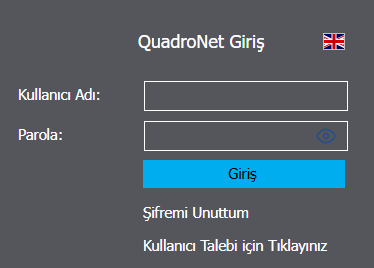
Giriş ekranı
Giriş ekranı
2

Doğrulama kodunu girin

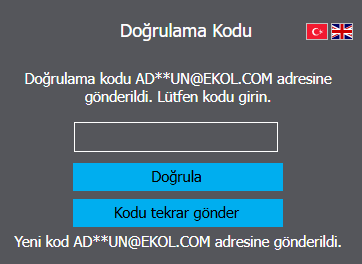
Giriş sonrası, kayıtlı e-posta adresinize 6 haneli bir doğrulama kodu gönderilir. Ekranda kodun gönderildiği adres maskeli olarak yazar. Kodu girip Doğrula'ya tıklayın.
📩
Kod gelmediyse Spam / Önemsiz (Junk) klasörünü kontrol edin. E-posta birkaç dakika içinde gelir. Görmezseniz Spam/Gereksiz klasörüne bakın; yine yoksa Kodu tekrar gönder düğmesini kullanın.
  • Kod 15 dakika geçerlidir.
  • Kod yalnızca yeni bir cihaz/tarayıcıda ilk girişte istenir.
Doğrulama kodu ekranı
3

Yeni şifrenizi belirleyin

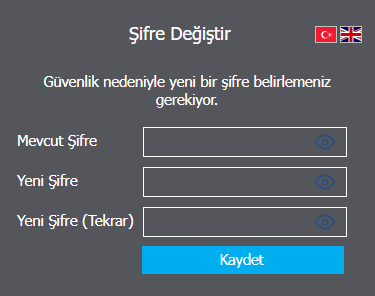
Kod doğrulandıktan sonra sizden yeni bir şifre belirlemeniz istenir. Mevcut şifrenizi, ardından yeni şifrenizi ve tekrarını girin. Kutulardaki göz simgesiyle yazdığınızı görebilirsiniz.
  • Yeni şifre eski şifrenizle aynı olamaz.
  • En az 8 karakter olmalı; harf ve rakam içermelidir.
  • İki şifre alanı birebir aynı olmalı.
Şifre belirleme ekranı

Kaydettikten sonra giriş tamamlanır ve ana sayfaya yönlendirilirsiniz.

4

Farklı bir cihazdan giriş

Daha sonra başka bir cihazdan veya tarayıcıdan giriş yaparsanız, güvenlik için yeniden e-postanıza bir kod gönderilir. Kodu girerek yeni cihazınızı da doğrularsınız. Doğruladığınız cihaz bir süre (yaklaşık 90 gün) hatırlanır ve tekrar kod sorulmaz.
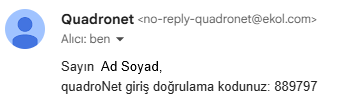
Yeni cihaz doğrulama e-postası
Yeni cihaz girişinde gelen doğrulama e-postası

Sık sorulan sorular

Doğrulama kodu e-postama gelmedi
Birkaç dakika bekleyin ve Spam / Önemsiz (Junk) klasörünü kontrol edin. Hâlâ yoksa Kodu tekrar gönder düğmesini kullanın. Sorun sürerse e-posta adresiniz sistemde güncel olmayabilir; yöneticinize/helpdesk'e başvurun.
Kodu yanlış girdim / "kod hatalı" diyor
Koddaki boşlukları silip yeniden deneyin. Birkaç hatalı denemeden sonra yeni bir kod istemeniz gerekebilir; Kodu tekrar gönder ile yeni kod alın.
Kodun süresi doldu
Kod 15 dakika geçerlidir. Süre dolduysa Kodu tekrar gönder ile yeni bir kod alın.
Yeni şifrem kabul edilmiyor
Yeni şifre eski şifreyle aynı olamaz; en az 8 karakter olmalı ve harf+rakam içermelidir. Ayrıca iki şifre alanı birebir aynı olmalıdır.
E-posta adresim yanlış / bana ait değil
Doğrulama kodu bu adrese gideceği için giriş yapamazsınız. Lütfen aşağıdaki helpdesk adresinden bize ulaşın; adresiniz güncellensin.

Yardıma mı ihtiyacınız var? [email protected] adresinden bize ulaşabilirsiniz.

A security update for your account

We've strengthened Quadronet sign-in security. On your first sign-in you'll confirm your identity with a verification code sent to your e-mail and set your own password. This guide walks through each step with screenshots.

Why was this added?

The goal is that every account can only be used by its real owner. The verification code proves you control the account's e-mail; setting your own password ends the use of shared passwords. For this reason, please sign in with your own account rather than a shared/common one.

1

Sign in

On the Quadronet sign-in screen, enter your username and password, then click Sign in. (You can click the eye icon in the box to reveal your password.)

Sign-in screen
Sign-in screen
2

Enter the verification code

After signing in, a 6-digit verification code is sent to your registered e-mail address. The screen shows the (masked) address it was sent to. Enter the code and click Verify.

📩
If the code doesn't arrive, check your Spam / Junk folder. The e-mail arrives within a few minutes. If you don't see it, look in Spam/Junk; if it's still missing, use the Resend code button.
  • The code is valid for 15 minutes.
  • You're only asked for a code the first time on a new device/browser.
Verification code screen
3

Set your new password

After the code is verified, you'll be asked to set a new password. Enter your current password, then your new password and its confirmation. Use the eye icon to see what you typed.

  • The new password cannot be the same as your old one.
  • At least 8 characters, containing letters and numbers.
  • Both password fields must match exactly.
Set-password screen
Set-password screen

Once saved, your sign-in completes and you're taken to the home page.

4

Signing in from another device

If you later sign in from a different device or browser, a new code is e-mailed to you for security. Enter it to verify the new device. A verified device is remembered for a while (about 90 days), so you won't be asked again.

New-device verification e-mail
Verification e-mail received on a new-device sign-in

Frequently asked questions

The verification code didn't arrive
Wait a few minutes and check your Spam / Junk folder. If it's still missing, use Resend code. If the problem continues, your e-mail address may be out of date — contact your administrator/helpdesk.
I typed the code wrong / it says "invalid code"
Remove any spaces and try again. After a few wrong attempts you may need a fresh code — get one with Resend code.
The code expired
The code is valid for 15 minutes. If it expired, request a new one with Resend code.
My new password isn't accepted
The new password can't match the old one, must be at least 8 characters, and must contain letters and numbers. Both fields must also match exactly.
My e-mail address is wrong / not mine
Since the code is sent there, you won't be able to sign in. Please contact us at the helpdesk address below to update it.

Need help? Reach us at [email protected].